

Scanned documents, image-heavy reports, and exported portfolios have one thing in common: they balloon into multi-megabyte PDFs that refuse to attach to emails, crawl through WhatsApp, and eat your phone’s storage. The good news? You don’t need a laptop to fix this. Your Android phone can shrink a PDF in under a minute.
This guide covers five practical ways to reduce PDF file size on Android — three free apps and three browser-based tools — plus the mistakes that make PDFs bloated in the first place.
Why Do PDF Files Get So Large?
Before compressing anything, it helps to know what’s inflating your file. Most oversized PDFs come from one of three culprits:
- High-resolution scans. Camera scans at full resolution produce crisp pages — and enormous files.
- Embedded images. Photos pasted into a document keep their original resolution unless the export tool resamples them.
- Uncompressed fonts and layers. Some export settings preserve editing data you don’t need for reading or sharing.
Compression works by downsampling images, re-encoding them more efficiently, and stripping redundant data. Done right, a text-heavy PDF can drop 60–90% in size with no visible difference on a phone screen.
1. Compress a PDF with a PDF Compressor
For regular use — say, compressing bank statements or school assignments — a lightweight offline app is the fastest option. Apps like PDF Compressor or Compress PDF File work entirely on your device, which also means your document never leaves your phone. That’s worth remembering if the file is sensitive.
Step-by-step:
- Install a reputable PDF compressor app from the Play Store (search “PDF Compressor” — look for apps with 4+ star ratings and recent updates).
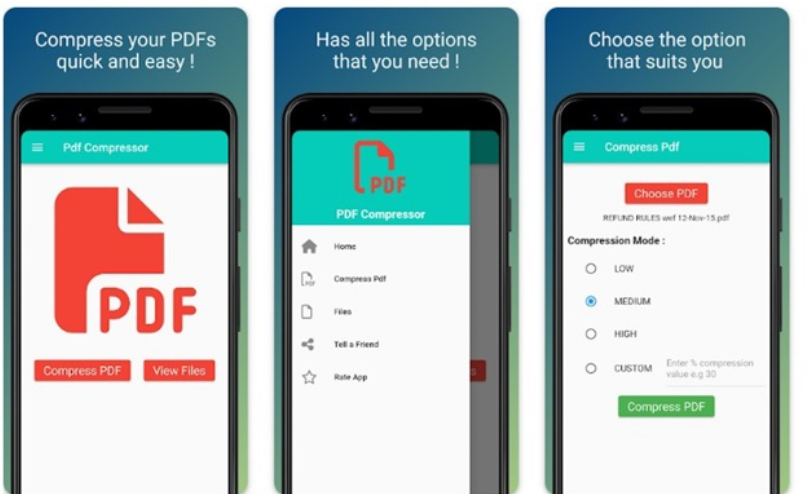
- Open the app and tap Compress PDF or Choose PDF on the home screen.
- Pick your file from the file manager.
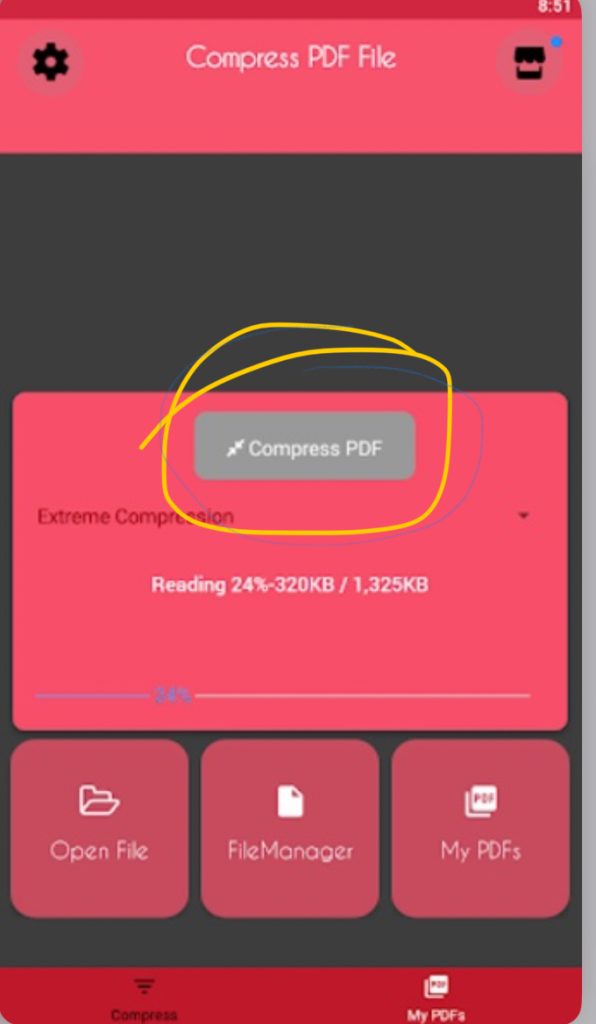
- Select a compression mode. Most apps offer tiers like Low, Medium, and High — or in some apps, “Extreme Compression.”
- Tap Compress and wait a few seconds. The shrunken file saves to a folder like
PDFCompressorin your internal storage. Find the screenshot below on how to go about it.
Below is the result of it.
2. Use an All-in-One PDF App (Smallpdf)
If you juggle more than just compression — merging, signing, converting — an all-in-one tool like Smallpdf makes more sense than a single-purpose app. Its Android app bundles a scanner, converter, and compressor in one place, and it can pull files straight from Google Drive or Dropbox.
How to compress with Smallpdf:
- Install the Smallpdf app and open it.
- Switch to the Tools tab and tap Compress PDF.
- Tap Add Files and choose your document.
- Select the file, tap Next, then pick your compression level:
- Basic compression (free): reduces size by up to ~40% with virtually no visible quality change.
- Strong compression (Pro): targets up to ~75% reduction.
- The app processes the file and saves the compressed copy alongside the original.
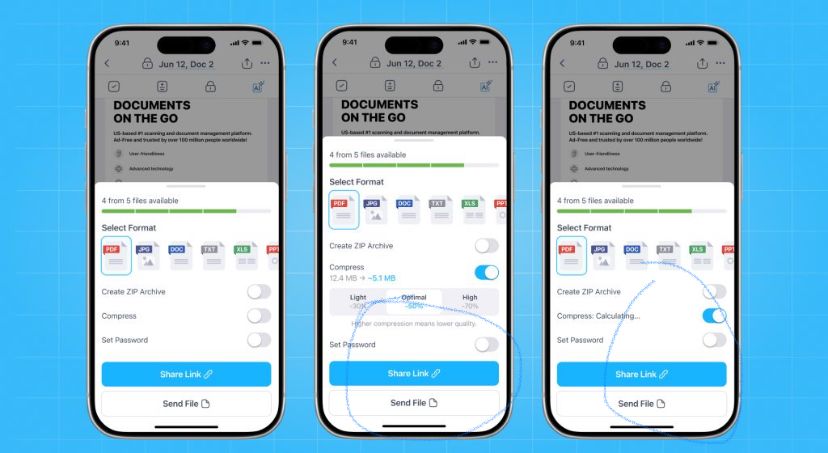
One honest caveat: heavy compression lives behind a subscription. For everyday documents, the free basic mode is usually enough — but if you’re compressing a 50-page scanned thesis, an offline app or the methods below will get you further without paying. Find attached the description below.
3: Compress PDFs Online — No App Needed
Don’t want another app hogging storage? Any modern mobile browser handles online PDF compressors just fine. Three reliable options:
iLovePDF
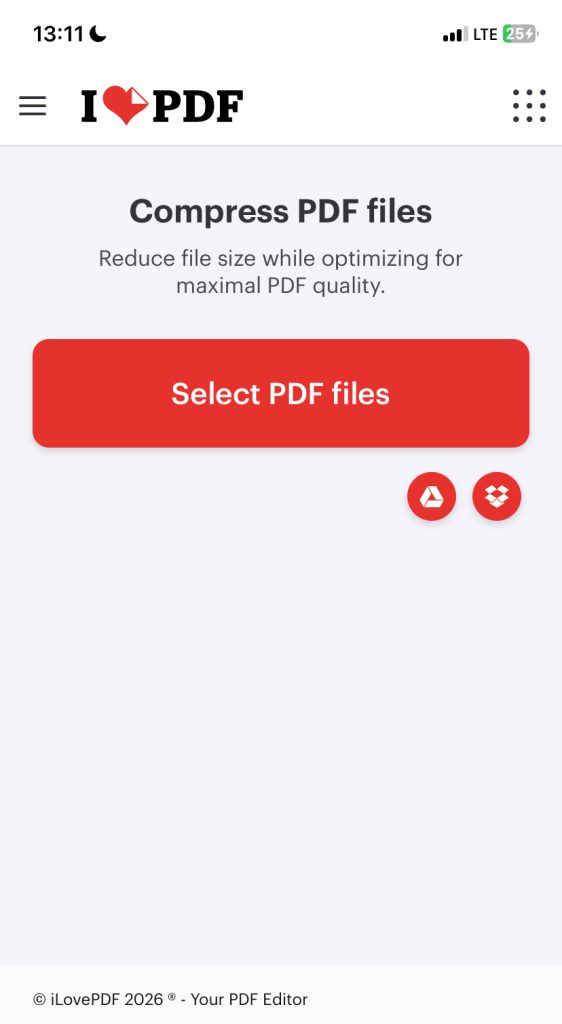
The cleanest interface of the bunch. Open ilovepdf.com/compress_pdf in Chrome, tap Select PDF files, pick your document, and choose between “Extreme” and “Recommended” compression. Your download starts automatically when it’s done. Free tier handles one file at a time.
Pro Tips to Keep PDFs Small Before You Compress
Compression is a fix; prevention is better. A few habits that stop bloat at the source:
- Scan at reasonable quality. Most scanning apps default to maximum resolution. Dropping to “medium” or “document” quality halves file size before you even export.
- Prefer grayscale for text. Black-and-white scans of printed pages are dramatically smaller than color ones.
- Export instead of printing to PDF. When saving from Word or Google Docs, use “Export as PDF” with web/screen quality settings rather than print-quality presets.
- Split before you shrink. If only two pages of a 40-page file are actually needed, extract those pages first — then compress.
- Batch your cleanup. If you compress regularly, delete the originals afterward. Keeping both copies quietly doubles the storage you’re trying to save.
Frequently Asked Questions
Will compressing a PDF make the text blurry? Not with basic or recommended settings — those mainly optimize images and encoding. Only extreme compression noticeably softens graphics, and even then, printed text typically stays legible.
Can I reduce PDF size on Android for free? Yes. All three methods above work without payment, though premium tiers (like Smallpdf’s Strong compression) unlock deeper reductions.
What’s a “good” file size for emailing a PDF? Most email services cap attachments at 20–25 MB. For smooth sending — and especially for WhatsApp, which compresses aggressively — aim for under 5 MB.
Does compression remove pages or editing features? No. A compressed PDF keeps every page and remains fully readable and printable. However, flattened layers and removed fonts mean some editors can no longer modify individual elements.
Why did my compressed PDF barely shrink? If the file is mostly vector text (like an exported Word doc), there’s little image data to optimize. Try splitting out unneeded pages instead.
Conclusion
Thank you for reading to the very end of this blog post. I hope you have learnt how to reduce or compress your PDF either using online or Application.