

“What’s my number again?” If you’ve ever fumbled for an answer to that question while filling out a form, setting up a bank account, or giving your details to a delivery driver, you’re in good company. Most of us call and text so much that we never actually dial our own number — and that means it never really sticks in memory.
The good news: if you carry a Samsung Galaxy, your number is hiding in plain sight, just a few taps inside the Settings app. No need to dig out old SIM packaging or awkwardly text a friend asking them to read your number back to you.
In this guide, I’ll walk you through the quickest route — finding your number through Settings — plus a handful of backup methods (Contacts, WhatsApp, and a classic trick involving a friend’s phone) so you’re never stranded again.
What you’ll learn:
- The exact Settings path that reveals your number on a Samsung Galaxy
- How to find your number via the Contacts app if Settings shows nothing
- A WhatsApp trick that works on any Android phone, not just Samsung
- What to do when your number shows up as “Unknown”
Why Bother Learning This?
Think about how often someone asks for your number: job applications, loyalty programs, two-factor verification, emergency contacts. Relying on memory (or on a friend being nearby to call) is fragile — especially if you recently switched carriers, got a new SIM, or juggle a personal and work line on a dual-SIM phone like the Galaxy models in the screenshots below.
Learning where your phone stores its own number takes about 30 seconds and saves you from that awkward “hold on, let me figure out who I am” moment for the rest of your phone’s life.
Step 1: Open the Settings App
Tap the Settings (gear) icon in your app drawer — or swipe down from the top of the screen and tap the little gear in the top-right corner of the notification panel.

Tip: Can’t spot the gear? Swipe up on the home screen to open the app drawer, then type “Settings” into the search bar at the top. Tap the result and you’re in.
Step 2: Scroll Down and Tap “About Phone”
Once Settings opens, scroll all the way to the bottom of the list and tap About phone. On some Samsung models this entry sits right below Software update and User manual, with a subheading like Status · Legal information · Phone name.

Note: On older Galaxy phones, the entry may be called About device or About phone > Status. If your Settings screen is organized with tabs at the top, check the More tab first.
Step 3: Read Your Number at the Top
On the About phone screen, look at the very top — you’ll see your phone’s name (like “Sarnath’s M30s” below), and directly underneath it, the Phone number field. That’s your number, exactly as the network sees it.

On a dual-SIM Samsung, you’ll see two entries here — one per SIM slot — so you can grab whichever line you need.
Can’t find this? If the number shows as “Unknown”, your SIM hasn’t registered it with the phone yet. Pop the SIM out and reseat it, restart the phone, and check again. Still blank? Add it manually to your own contact card (see Step 4) or give your carrier a quick call — they can register it remotely.
Step 4: Check the Contacts App (Plan B)
If About phone came up empty, your number may be living in your own contact card instead. Open the Contacts app — it’s the orange icon with a person silhouette.
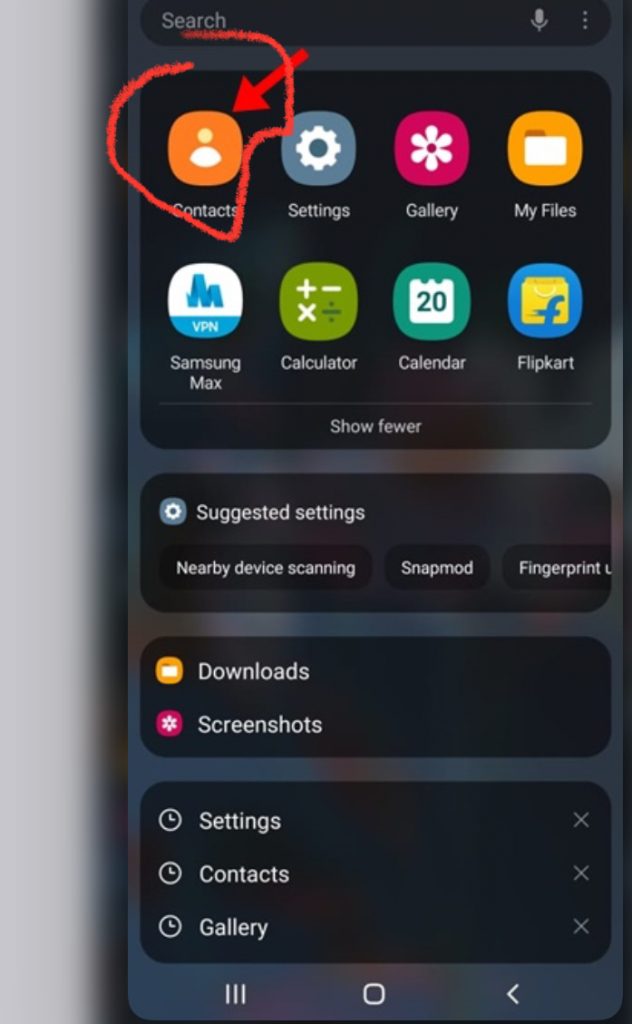
Tap your name (or your profile picture) at the very top of the contacts list — that’s your personal contact card.

Scroll down slightly and you’ll see your number(s) listed under This phone, each with call, message, and video buttons beside it.
You will see your phone number here.
Bonus: Extra Tips for Power Users
- Screenshot your “About phone” screen and keep it in a secure notes app (behind a password) — instant access even when your phone is dead or you’re traveling without it.
- Dual-SIM owners: label your SIMs in Settings > Connections > SIM manager so the two numbers in “About phone” are easy to tell apart.
- Check your carrier’s app (e.g., your network provider’s account app) — your number is almost always displayed on the home screen after you log in.
- Dig up the SIM card packaging if you still have it — the number is printed on the cardholder or activation slip.
- Your monthly bill or invoice lists every active number on the account, which is handy if you manage lines for family members too.
Things to Know After You Find It
Finding your number is completely safe — nothing changes on your phone or account. But a few expectations worth setting:
- The number shown is the one registered on your SIM, so if you port your number to a new carrier, the phone updates automatically (though it can occasionally lag a few hours).
- Some budget carriers or prepaid SIMs never push the number to the phone, so “Unknown” may be permanent — in that case, saving it to your own contact card is the best fix.
- These paths can shift slightly with One UI updates — Samsung occasionally renames menus — but “About phone” has been the home of your number for years and isn’t going anywhere.
FAQ
Why does my Samsung show “Unknown” instead of my phone number? Usually it means the SIM card didn’t transfer its number to the phone during setup. Restart the phone with the SIM inserted, reseat the SIM, or ask your carrier to push the number to your device. If that fails, save it manually on your contact card.
Does this work on non-Samsung Android phones? Mostly, yes. The Settings > About phone path exists on nearly every Android phone, though menu names vary slightly by brand (Xiaomi, Pixel, Oppo, etc.). The WhatsApp and “call a friend” methods work everywhere.
How do I find my number on a dual-SIM Samsung? In About phone, both numbers appear side by side, labeled by SIM slot. If they’re not labeled clearly, go to Settings > Connections > SIM manager to rename them (e.g., “Work” and “Personal”).
Can I find my phone number using my IMEI? No — the IMEI identifies your device, not your number. They’re completely separate. Your number comes from the SIM; the IMEI comes from the phone hardware.
What if I don’t have another phone to call for the “call a friend” method? Use any landline, a messaging app on a computer (WhatsApp Web shows your number under your profile), or your carrier’s customer service line — automated systems often announce your number when you call from it.
Conclusion
That’s all there is to it: Settings > About phone > Phone number — three taps and you’ll never have to guess your own digits again. And if your phone decides to be stubborn, the Contacts app, WhatsApp, and a quick call to a friend have your back.
Did one of these methods save your day — or did you run into a menu that looked different on your Galaxy model? Drop a comment below and share this guide with that one friend who always forgets their number. We’ve all been there!
The content is really great
We so much apprecite that you found this content helpful. I hope we are able to serve you better.