

Ever wondered why a random website seems to know exactly which city you’re browsing from? That’s Chrome’s location service at work. While it’s genuinely useful for maps, food delivery, and local search results, it can also quietly hand your whereabouts to sites you don’t fully trust — sometimes because you tapped “Allow” by accident.
The good news: turning location off in Chrome for Android takes less than a minute. This guide walks you through it step by step, shows you how to revoke permissions from individual websites, and answers the most common questions people have afterward.
What you’ll learn:
– How to completely disable location access in Chrome on Android
– How to re-enable it later if you change your mind
– How to block or remove location access for specific sites only
– What actually happens to sites when you flip the switch
Why Bother Disabling Location in Chrome?
Before jumping into the steps, it’s worth understanding what’s at stake. When location is enabled, websites can request your coordinates to serve “local” content. Most of the time that’s harmless — but there are a few good reasons to keep it off by default:
- Accidental permissions: We’ve all mindlessly tapped “Allow” on a popup. Over time, dozens of sites can end up with access they don’t need.
- Privacy: Your location is sensitive data. Not every site needs to know where you are.
- Battery and data: Constant location lookups can quietly drain battery and use mobile data.
Now, let’s get it done.
Step 1: Open Chrome and Tap the Three Dots
Launch the Google Chrome app on your Android phone. In the top-right corner of the screen, next to the address bar, tap the three-dot menu (⋮).
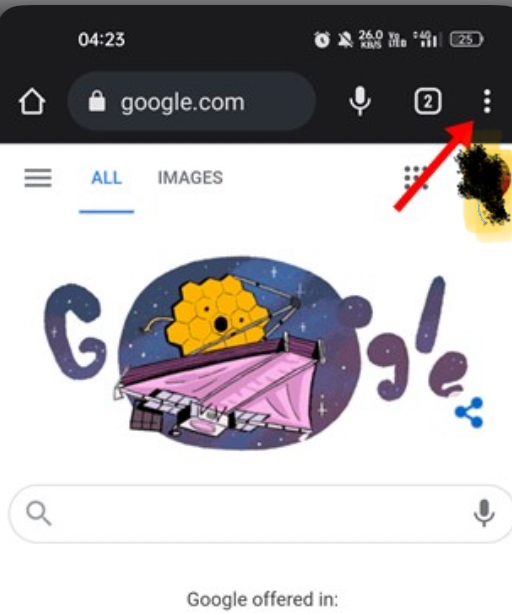
Can’t find the three dots? On some phones the menu may sit at the bottom of the screen instead of the top, depending on your Chrome layout settings. It looks the same — three vertical dots.
Step 2: Tap “Settings”
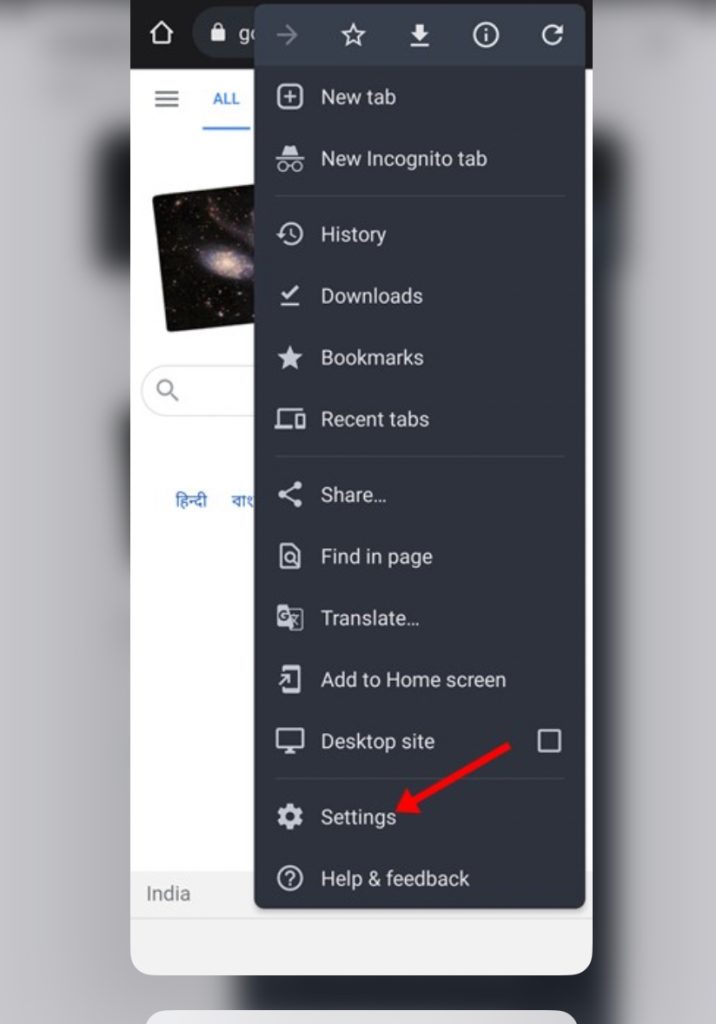
From the dropdown menu, scroll down and tap Settings. This opens Chrome’s settings page, where all the app’s permissions and preferences live.
Step 3: Scroll Down and Tap “Site Settings”
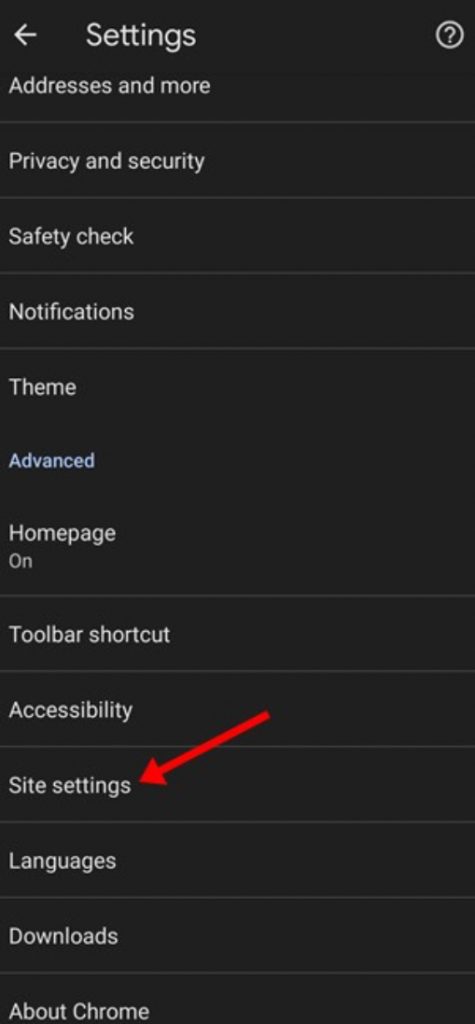
On the Settings page, scroll down until you find Site settings (under the “Advanced” section on most versions) and tap it.
This is the control center for what websites are allowed to do — camera, microphone, notifications, and of course, location.
Step 4: Tap “Location”
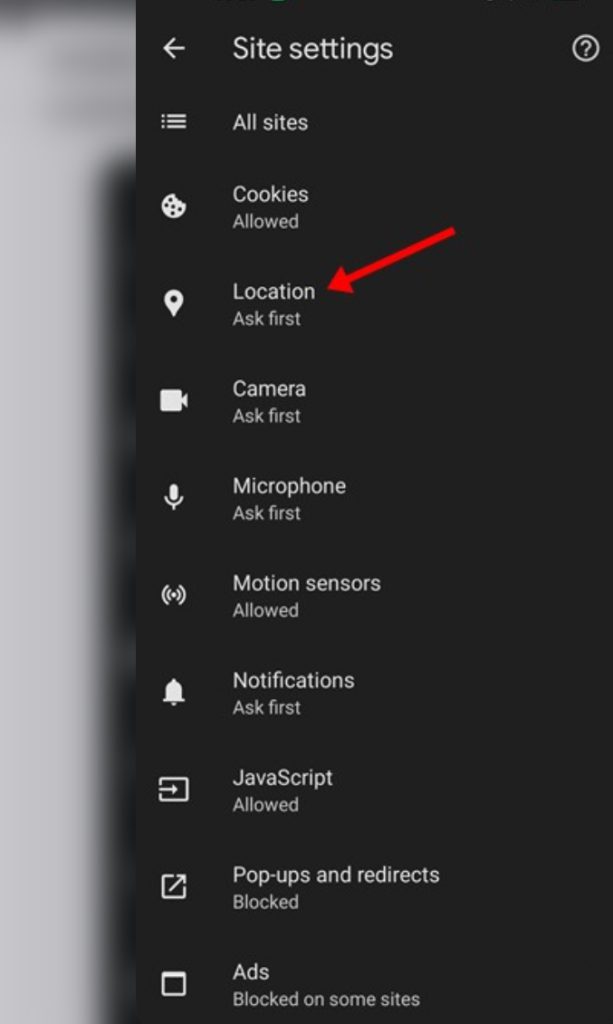
In the Site settings list, find Location — it has a location pin icon and usually shows “Ask first” underneath. Tap it to open the location controls.
Step 5: Toggle Location Off
Here’s the moment of truth. At the top of the Location page, you’ll see a toggle switch next to the word “Location.”
- Toggle ON (blue): Sites can ask for your location (Chrome’s recommended default — “Ask before allowing sites to know your location”).
- Toggle OFF (grey): Location is Blocked — no website can see where you are, and Chrome won’t even ask.
To disable location entirely, simply tap the toggle to turn it off. The label underneath will change to “Blocked,” and you’re done — every site is now cut off.
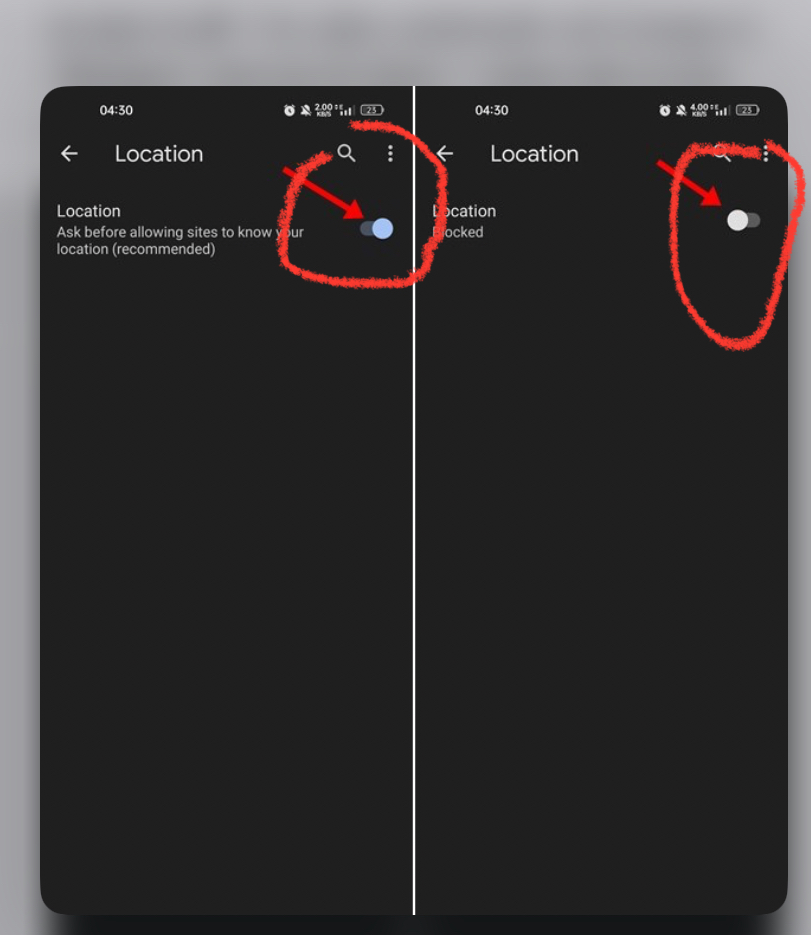
Changed your mind? Flip the toggle back on at any time to return to the “Ask first” behavior.
Bonus: Block or Remove Location Access for Specific Sites Only
Don’t want to nuke location for every site? You can be surgical about it. On that same Location page, scroll down to find lists of sites grouped by their current status (allowed, blocked, etc.). Then:
- Tap the site’s URL to open its individual permission page.
- Choose Block to stop that site from seeing your location, or
- Tap Remove to delete the permission entirely, so the site has to ask again next time.
This is a great middle ground — keep location on for Google Maps, but block it for that sketchy shopping site you visited once.
What Happens After You Disable Location?
A few things worth knowing:
- Sites won’t know where you are. Location-based features — nearby store finders, local news, weather for your area — simply won’t work in Chrome until you re-enable it.
- Previously allowed sites lose access too. Toggling location off overrides any individual permissions you granted before.
- This only affects Chrome. Your phone’s GPS and other apps (Maps, Uber, etc.) are controlled separately through your Android system settings, not here.
Frequently Asked Questions
Will disabling location break Google Maps in Chrome?
Yes — Maps in the browser won’t be able to center on your current location. If you use the standalone Google Maps app, that’s unaffected.
Does this stop Google from tracking my location?
No. This setting controls what websites can access. Google’s own location history and account-level tracking are separate settings in your Google Account.
Why do some sites still show my city?
Many sites guess your general location from your IP address — no GPS required. Chrome’s location permission doesn’t block that.
Do I need to restart Chrome for the change to take effect?
No. The toggle applies immediately.
Conclusion
Disabling location in Chrome for Android really is a five-tap job: three dots → Settings → Site settings → Location → toggle off. Take the extra thirty seconds to scroll through the site list and revoke permissions from sites you don’t recognize, and you’ll have a meaningfully more private browsing experience — without sacrificing anything you actually use.
If you found this guide helpful, share it with someone who taps “Allow” on every popup they see. And if you run into trouble along the way, drop a comment below!